Introduction
You download an essential file, wait for it to finish, and try to open it, only to find an annoying popup blocking your access. This disruptive message halts your workflow, leaving your important data completely trapped inside an unreadable archive. Data corruption or missing transfer packets usually trigger this system roadblock. This definitive guide will walk you through exactly what is a checksum error, why it occurs, and how to fix it instantly using proven, built-in system methods.
Complete Mapping of File Corruption and Match Statistics
| File Extension Type | Common Error Triggers | Primary Verification Tool | Success Rate of Built-in Fixes |
| .RAR / .ZIP | Interrupted downloads, bad storage sectors | WinRAR / 7-Zip Repair | 85% (Using Broken File Retention) |
| .EXE / .ISO | Network packet loss, browser transfer drops | MD5 & SHA-256 Checksum Utility | 95% (Requires Re-download) |
| .TAR / .GZ | Server-side compression faults, script bugs | Linux Terminal (md5sum) | 90% (Using Archive Tools) |
What is a Checksum Error?
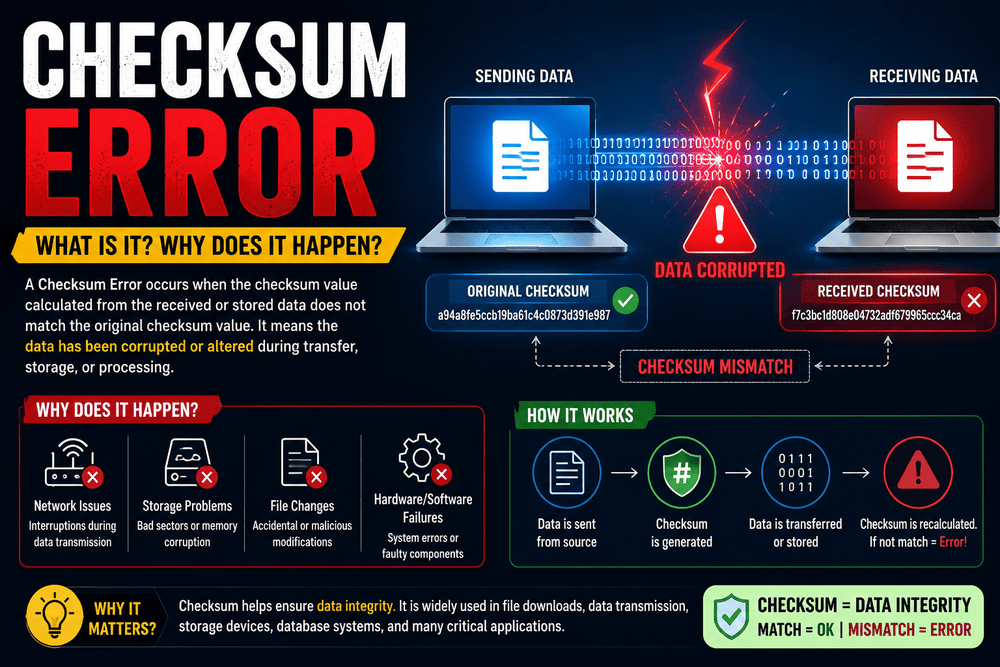
A checksum error is a distinct security and stability warning that indicates data has been altered, corrupted, or lost during transmission or storage. When a file is created, it is assigned a unique digital fingerprint based on its exact byte count. If you download or move that file and the system notices the final fingerprint does not match the original one, it triggers a warning.
This mechanism acts as a digital protective shield. It stops your computer from running damaged files that could potentially crash your operating system or software apps.
The Underlying Mechanics: How Checksums Work
Every digital file consists of a long string of binary data. To ensure this data travels safely across the internet, a mathematical algorithm processes the file to generate a specific numeric value. This value is known as a checksum hash. Common algorithms used to create these values include MD5, SHA-1, and SHA-256.
When you download a compressed folder, your operating system calculates its own version of this hash value. If your system’s final calculated number matches the original number embedded by the sender, the download is successful. When the numbers mismatch, your computer flags the file because it knows the data is no longer authentic or complete.
What Causes a Checksum Mismatch in Compressed Archives?
Understanding why your archives fail to open helps you protect your storage drives from future issues. Several technical bottlenecks cause files to change during transfer or storage.
- Abrupt Network Disconnections: If your Wi-Fi drops out for even a second during a download, small packets of data vanish. The file might look complete on your desktop, but its internal structural coding remains broken.
- Mechanical Drive Failures: Hard drives develop bad sectors over time. If a file is stored on a physically degrading section of your storage disk, the computer will fail to read the binary code accurately.
- Malware Interventions: Computer viruses often inject malicious code into existing files. This alteration changes the file structure and triggers a security mismatch warning.
- Incompatible Extraction Programs: Using outdated compression utilities to unpack modern, high-compression archives frequently causes processing mistakes.
How to Fix a WinRAR Checksum Error Using Broken File Settings
When dealing with compressed archives like RAR or ZIP folders, you do not always have to delete the file and start over. WinRAR has a built-in feature designed to bypass minor corruption blocks.
- Open your file directory and right-click the damaged compressed archive.
- Select Extract files from the context menu to launch the advanced extraction configuration window.
- Look at the bottom left section of the settings panel to locate the Miscellaneous tab.
- Check the box next to Keep broken files.
- Choose your destination folder and click OK.
This setting forces the software to ignore small byte discrepancies. It saves every uncorrupted portion of the folder directly onto your local drive so you can access your data.
Utilizing the Native WinRAR Utility to Repair Archives
If preserving broken files does not solve the issue, the file header structure might need a complete rebuild. You can fix this directly through the main software interface.
- Launch the WinRAR application directly from your system desktop.
- Use the internal file navigator to find and highlight your corrupted file.
- Click the Tools button located on the top navigation bar.
- Select Repair archive from the drop-down options menu.
- Click Browse to choose a safe output directory, then select OK to begin the structural reconstruction.
Once the utility finishes scanning, it creates a brand-new file with the prefix rebuilt. in your chosen folder. This file can usually be extracted without any further issues.
Resolving Checksum Mismatches via Command Prompt (CMD)
System file corruption can also cause verification mistakes during software installations. When this happens, running the Deployment Image Servicing and Management (DISM) tool alongside the System File Checker (SFC) will fix deep OS communication bugs.
- Type cmd into your Windows taskbar search box.
- Right-click the Command Prompt icon and choose Run as administrator.
- Type DISM.exe /Online /Cleanup-image /Restorehealth and hit Enter to download fresh system files from Microsoft servers.
- After the progress bar completes, type sfc /scannow and press Enter.
- Allow the system scan to finish, then restart your PC.
This dual-layer repair process fixes corrupted system registries. It ensures your operating system reads file downloads and storage blocks properly.
Advanced Verification Using Third-Party MD5 and SHA Utilities
When downloading large installation packages like operating system ISO files, checking the file integrity manually before running the file saves a lot of time. You can verify this integrity through the native Windows PowerShell tool.
- Hold the Shift key and right-click inside the folder where your downloaded file lives.
- Select Open PowerShell window here from the context menu.
- Type Get-FileHash .\FILENAME.ext -Algorithm SHA256 (replace “FILENAME.ext” with your actual file name).
- Press Enter to generate the unique digital hash string.
Compare this long string of characters against the official value listed on the developer’s download page. If they match perfectly, your file is secure and clean. If they do not match, the download is corrupted, and you will need to download it again from a stable network connection.
Proven Strategies to Prevent Data Corruption in Daily Workflows
Preventing errors entirely is much easier than trying to repair broken files after the fact. Adopting a few simple data habits keeps your system healthy and clean.
- Use Dedicated Download Managers: Standard web browsers often drop connections when downloading large files. Dedicated download managers handle network interruptions better and ensure no packets are lost.
- Run Scheduled Storage Diagnostics: Check your hard drive health once a month using native tools like CHKDSK. This helps you identify failing storage blocks before they ruin your data.
- Invest in a Reliable UPS: Sudden power losses shut down your computer unexpectedly. This causes files currently being written to storage disks to corrupt instantly.
- Keep Your Extraction Tools Updated: Ensure applications like WinRAR, 7-Zip, or WinZip are updated regularly to stay compatible with new compression methods.
Summary of Core Fixes for File Discrepancies
Fixing these file errors comes down to choosing the right solution for your specific situation. For compressed folders, changing your extraction settings or using built-in software repair tools will restore your data quickly. For system-level installation problems, running terminal commands like SFC and DISM ensures your operating system reads file properties correctly. Finally, for large application downloads, verifying the SHA-256 hash helps you check if a file is safe before you run it.
Frequently Asked Questions on Data Verification
What is a checksum error and why does it happen?
A checksum error occurs when the final digital fingerprint of a downloaded or moved file does not match its original creation code. This discrepancy indicates that bits of data were altered, corrupted, or lost during transfer due to unstable internet connections or failing storage drives.
Can a computer virus trigger validation errors?
Yes, malware frequently changes the internal code structure of local files. When your system calculates the hash value of an infected file, it will not match the original layout, which flags a validation warning.
Does clicking “Keep Broken Files” damage my operating system?
No, this setting simply tells your extraction tool to save the undamaged parts of a folder instead of deleting the whole thing. It does not alter your core system configuration files or put your OS at risk.
Why do my downloads consistently show corruption messages?
If every file you download shows this error, you likely have an unstable internet connection causing packet loss, or your hard drive is starting to fail. Try downloading the file from a different network or saving it to an external drive to test it.
What is the difference between an MD5 and a SHA-256 hash?
Both are mathematical algorithms used to check file integrity. MD5 is older and faster but less secure, while SHA-256 is highly advanced and virtually impossible to forge, making it the industry standard for verification.
Is it safe to ignore these warnings and run files anyway?
Ignoring these warnings is generally unsafe for executable (.exe) applications, as running broken system files can cause software crashes or system instability. However, for media files like video or audio tracks, ignoring the warning is usually fine, as it typically just results in a minor glitch during playback.