How to Check Motherboard Model
Introduction
Have you ever wondered what motherboard sits inside your computer? Maybe you want to upgrade your RAM, or perhaps you need to download the right drivers. Whatever your reason, learning how to check motherboard model is easier than you think. You don’t need to be a computer expert or open your PC case right away. In fact, there are several quick ways to find this information using tools already built into your Windows system .
Your motherboard is the backbone of your computer. It connects everything together – your processor, memory, storage, and all other components. Knowing its exact model helps you make smart decisions about upgrades and repairs. When you understand how to check motherboard model, you avoid buying incompatible parts that won’t fit or work with your system. This saves you time, money, and frustration .
In this friendly guide, I’ll walk you through every possible method to discover your motherboard model. From simple Windows tools to checking the physical board itself, you’ll learn exactly what to do. I’ve helped many friends and family members with this exact question, and now I’m excited to share these tips with you. Let’s dive in and solve this mystery together!
Why You Need to Know Your Motherboard Model
Before we jump into the how-to steps, let’s talk about why knowing your motherboard matters so much. When I first started tinkering with computers, I made the mistake of buying RAM that didn’t fit. It was frustrating! Learning how to check motherboard model would have saved me that trouble .
Your motherboard determines what parts you can upgrade. Want to add more memory? You need to know what type your board supports. Thinking about a faster processor? The motherboard must be compatible with that specific CPU. Even simple things like adding a new graphics card or faster SSD depend on your motherboard’s specs .
Driver updates are another big reason. Motherboard manufacturers release updates that fix bugs, improve performance, and patch security holes. But you can’t download the right drivers unless you know your exact model . This is especially important for features like TPM 2.0 and Secure Boot that keep your computer safe from modern threats .
Here’s something else I’ve learned over the years: knowing your motherboard helps with troubleshooting. When something goes wrong, support forums and techs will ask about your motherboard. Having that information ready makes getting help much faster. It’s like knowing your car’s model when ordering replacement parts – it just makes everything smoother .
Method 1: Using System Information (The Easiest Way)
Let me show you the simplest method first. Windows has a built-in tool called System Information that often displays your motherboard details. It’s quick, requires no special skills, and takes less than a minute .
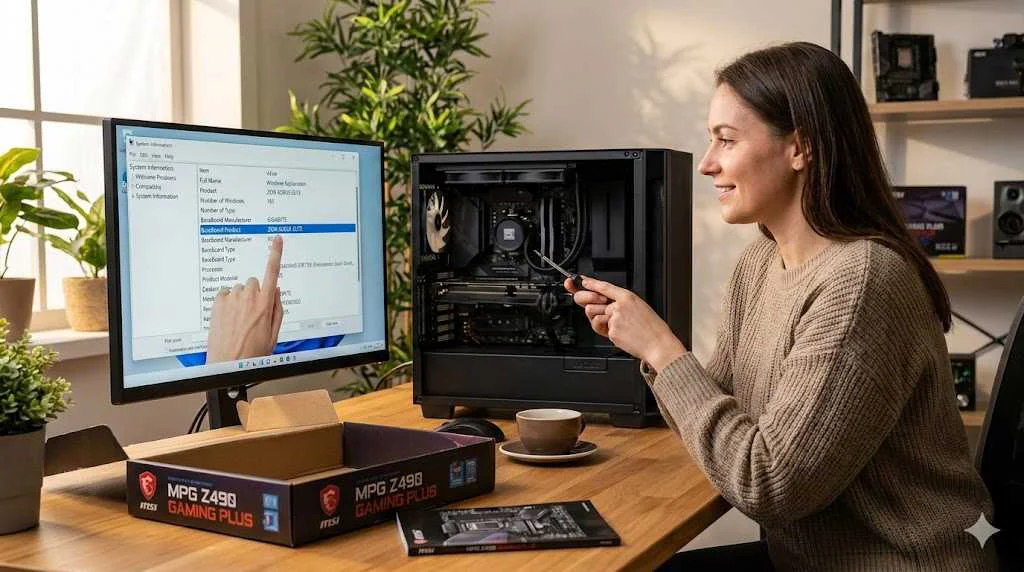
Here’s what you do: press the Windows key + R on your keyboard at the same time. This opens the Run dialog box. Type msinfo32.exe and hit Enter . A window will pop up with lots of technical details about your computer. Look through the list for entries called “BaseBoard Manufacturer” and “BaseBoard Product” . The manufacturer might say something like “ASUS” or “Gigabyte,” and the product is your actual motherboard model number .
I’ve used this method on dozens of computers, and it works most of the time. However, sometimes you might see “To be filled by OEM” instead of the actual information . This happens with some pre-built computers from brands like Dell or HP. Don’t worry if this happens to you – we have other methods that will work .
The System Information tool also shows other helpful details like the BIOS version and system type. Even if it doesn’t show your motherboard model, it’s still worth checking because it might reveal the manufacturer, which helps narrow things down .
Method 2: Command Prompt Power
If System Information didn’t work or you want to try something different, the Command Prompt method is my personal favorite. It feels a bit like being a computer wizard, but I promise it’s not complicated! This is another reliable way how to check motherboard model using text commands .
First, open the Command Prompt. Click the Start button, type cmd in the search box, and press Enter. A black window will appear. Now, carefully type this command: wmic baseboard get product, manufacturer, version, serialnumber . Press Enter, and within seconds, you’ll see your motherboard information displayed neatly .
The command shows several pieces of information. “Manufacturer” tells you who made the board. “Product” is your motherboard model number – this is the key piece you’re looking for. “Version” might show a revision number, and “serialnumber” is unique to your specific board . I love this method because it’s fast, accurate, and works on almost every Windows computer from Windows 7 through Windows 11 .
One tip from my experience: make sure you type the command exactly as shown. Even small typos can cause errors. If the command doesn’t work on your computer, don’t panic. Some newer Windows versions are moving away from this tool. In that case, try the PowerShell method I’ll show you next .
Method 3: PowerShell for More Details
PowerShell is like Command Prompt’s more powerful cousin. It comes built into Windows and can give you even more detailed information about your motherboard. If you’re wondering how to check motherboard model with modern tools, PowerShell is a great choice .
To get started, click the Start button and type PowerShell. Click on Windows PowerShell in the search results. A blue window will open. Now type this command: Get-WmiObject win32_baseboard | Format-List Product, Manufacturer, SerialNumber, Version . Hit Enter, and you’ll see a clean list of your motherboard details .
What I really like about PowerShell is how readable the output is. The information appears in a simple list format with clear labels. You’ll see your motherboard manufacturer right away, followed by the product model – exactly what you need . This method also works well for people who manage multiple computers or need to create reports about their hardware .
PowerShell might look intimidating if you’ve never used it before, but give it a try. The command is easy to copy and paste, and it’s very reliable. Plus, learning a bit about PowerShell opens doors to many other useful computer tasks down the road. Think of it as leveling up your tech skills .
Method 4: Check in BIOS/UEFI
Sometimes software methods don’t work, or maybe Windows won’t start at all. That’s when knowing how to check motherboard model through BIOS becomes invaluable. BIOS (or its newer version called UEFI) is the software that runs before Windows loads .
To enter BIOS, you need to restart your computer. Watch carefully as it boots up – you’ll usually see a message saying something like “Press DEL to enter Setup” or “Press F2 for BIOS” . Common keys include Delete, F2, F12, or Escape . Press that key repeatedly right after turning on the computer until the BIOS screen appears .
Once inside, look around for your motherboard model. On modern UEFI systems, it’s often displayed right on the main screen in “EZ Mode” . On older BIOS versions, you might need to navigate to a section called “Main,” “System Information,” or something similar . The model name should be clearly listed there .
I remember helping my neighbor with this method when his computer wouldn’t boot. We checked the BIOS, found his motherboard model, and used another computer to download the right recovery tools. It saved him a trip to the repair shop! Just remember not to change any settings while you’re in BIOS unless you’re absolutely sure what you’re doing. Simply look for the information and then exit without saving .
Method 5: Physical Inspection
Sometimes you just need to look at the actual hardware. Learning how to check motherboard model by physical inspection is a useful skill, especially if you’re comfortable working inside computers. Plus, seeing the real thing helps you understand your computer better .
First, completely shut down your computer and unplug it from the wall. Press the power button to discharge any leftover electricity. Open the computer case according to your manufacturer’s instructions – this usually means removing side panels or screws. Once inside, look at the main large circuit board. This is your motherboard .
The model name is usually printed right on the board itself. Check around the area between the expansion slots, near the RAM slots, or close to the CPU socket . You might see a silkscreened logo and model number, or perhaps a sticker with the information . Some manufacturers also put a label on the backside of the board, though you probably won’t see that without removing the motherboard entirely .
Here’s a safety tip from someone who’s been doing this for years: touch a metal part of the computer case before touching any components. This prevents static electricity from damaging sensitive parts. Also, take a photo with your phone once you find the model number – it’s easier than writing it down, and you’ll have it for future reference .
Method 6: Third-Party Software Tools
Want an even easier way? Several free programs can instantly tell you everything about your motherboard. These tools are perfect if you prefer clicking buttons over typing commands. They make learning how to check motherboard model feel like using any other app .
CPU-Z is my top recommendation. It’s tiny, completely free, and shows your motherboard information on a dedicated tab. Download it from the official website, install it, and click the “Mainboard” tab. You’ll see the manufacturer, model, chipset, and even BIOS version all in one place .
Speccy is another excellent choice. It gives you a beautiful overview of your entire system, including detailed motherboard specs. The interface is clean and easy to understand, even for beginners. You can also save or print the information for your records .
For advanced users, HWInfo provides incredibly detailed technical data. It shows sensor readings, voltages, and temperatures alongside your motherboard model. While it might offer more information than most people need, it’s still a reliable way to find your board model .
I often recommend CPU-Z to friends because it’s so straightforward. One click on the right tab, and there’s your motherboard model. These tools also show other useful details like memory type and speed, which helps when you’re planning upgrades .
Method 7: Check the Original Box or Receipt
This method might seem obvious, but it’s often overlooked. If you still have the box your motherboard came in, the model number is right there on the label. This is one of the fastest ways how to check motherboard model without even touching your computer .
Look at the box’s side panel where the barcode is. You’ll see the manufacturer name and model number clearly printed. For pre-built computers from brands like Dell, HP, or Lenovo, check the box or the receipt from your purchase. The system model number often corresponds to a specific motherboard inside .
If you bought your computer online, check your email for the order confirmation or receipt. Many online retailers list the full specifications including motherboard details. Even if they don’t list the exact motherboard model, you can often search for your computer’s model number online and find the motherboard specs that way .
I once helped a friend who had thrown away his computer box years ago. But he found the original receipt in his email, and a quick search with that information led us to his motherboard specs. It’s worth checking before you resort to opening the case or downloading software .
Complete Comparison Table of All Methods
Here’s a handy table comparing all the ways how to check motherboard model. Use this to choose the method that works best for you.
| Method | Tools Needed | Difficulty | Time Required | Works If PC Won’t Boot |
|---|---|---|---|---|
| System Information | Windows only | Very Easy | 1 minute | No |
| Command Prompt | Windows only | Easy | 1-2 minutes | No |
| PowerShell | Windows only | Easy | 1-2 minutes | No |
| BIOS/UEFI | None | Medium | 3-5 minutes | Yes |
| Physical Inspection | Screwdriver | Medium | 10-15 minutes | Yes |
| CPU-Z/Speccy | Download software | Very Easy | 5 minutes | No |
| Original Box | Your records | Very Easy | 1 minute | Yes |
What to Do When You See “To Be Filled by OEM”
Sometimes when you try to check your motherboard model using Windows tools, you’ll see frustrating messages like “To be filled by OEM” or blank fields . This happens often with brand-name computers from companies that assemble systems using generic parts. Don’t worry – you still have options .
OEM stands for Original Equipment Manufacturer. When companies like Dell, HP, or Acer build computers, they sometimes use motherboards with generic identification that Windows can’t read properly. The manufacturer information simply wasn’t programmed into the board .
In this situation, try the BIOS method first. Brand-name computers almost always display their system model in BIOS, which usually corresponds to a specific motherboard design. Write down that model number and search online for its specifications. You’ll often find forum posts or support articles identifying the exact motherboard inside .
Another approach is to look up your computer’s service tag or serial number on the manufacturer’s support website. For Dell, HP, and Lenovo systems, entering this number gives you the original specifications, including motherboard details. This has saved me many times when helping friends with pre-built computers .
Using Your Motherboard Model Information
Once you’ve learned how to check motherboard model and found the information, what’s next? This knowledge opens up many possibilities for improving and maintaining your computer. Let me share some practical ways to put that information to work .
First, visit the motherboard manufacturer’s website. Look for a “Support” or “Downloads” section and enter your model number. Here you’ll find driver updates, BIOS upgrades, and manuals. Keeping drivers current helps your computer run smoothly and securely . I check for updates every few months, especially after major Windows updates.
Second, use your motherboard model to plan upgrades. Need more RAM? Check the specifications page for your board to see what memory types and speeds are supported. Looking at a faster processor? The CPU support list tells you exactly which models will work. This prevents buying incompatible parts that you’ll have to return .
Third, join online communities for your motherboard brand. Forums like Reddit’s r/buildapc or manufacturer-specific communities have users with the same board. When you have questions about settings, troubleshooting, or upgrades, these communities can offer advice from people with firsthand experience .
Frequently Asked Questions
Can I find my motherboard model without turning on my computer?
Yes, you absolutely can. Physical inspection is your best option here. Open your computer case and look for the model number printed directly on the motherboard itself. You can also check any documentation, boxes, or receipts that came with your computer . The BIOS method also works if you can start the computer but Windows won’t load .
Will these methods work on laptops?
They work on most laptops, but with some limitations. The Windows software methods (System Information, Command Prompt, PowerShell) work exactly the same way on laptops . Physical inspection is much harder on laptops because they’re difficult to open. BIOS access works well on laptops too – just look for the system information screen .
What if my motherboard model isn’t listed anywhere?
This is rare but can happen with very old computers or generic systems. Try using a tool like CPU-Z, which often detects information that Windows tools miss . You can also search online using your processor model and computer brand – forums might have discussions from other users with similar systems who’ve identified the motherboard .
How often should I check for motherboard updates?
I recommend checking for BIOS and driver updates every 3-6 months. However, only install updates if you need them – if everything works fine, you might not need to update at all. Critical security updates are worth installing right away. Always read update notes to see what changes before installing .
Does the motherboard model affect gaming performance?
Your motherboard model itself doesn’t directly affect gaming speed. However, it determines what CPU, RAM, and graphics card you can use. A better motherboard might support faster components and features like overclocking. Knowing your model helps ensure you’re getting the most from your gaming setup .
Why do pre-built computers hide motherboard information?
Manufacturers of pre-built systems often use custom motherboards designed specifically for that model. They don’t always program the full identification info because they expect users to contact their support for help. This is why you might see “To be filled by OEM” when checking system information .
Conclusion
Learning how to check motherboard model is one of those simple skills that makes a huge difference in managing your computer. Whether you use the quick System Information tool, type commands in PowerShell, peek inside your case, or check the original box, you now have multiple ways to find this essential information. Each method has its place, and having options means you’ll never be stuck wondering what’s inside your PC .
I hope this guide has made the process clear and approachable. Remember, your motherboard model is like your computer’s fingerprint – it’s unique and tells you everything you need to know about what your system can do. Keep that model number handy for driver updates, upgrade planning, and troubleshooting. Trust me, future you will thank you for writing it down .
Now it’s your turn! Try one of these methods today and discover your motherboard model. Share what you find in the comments below, or let me know if you run into any trouble. I’m here to help you become more confident with your computer. Happy exploring, and here’s to many successful upgrades and smoothly running systems in your future !
About the Author


